
 admin
admin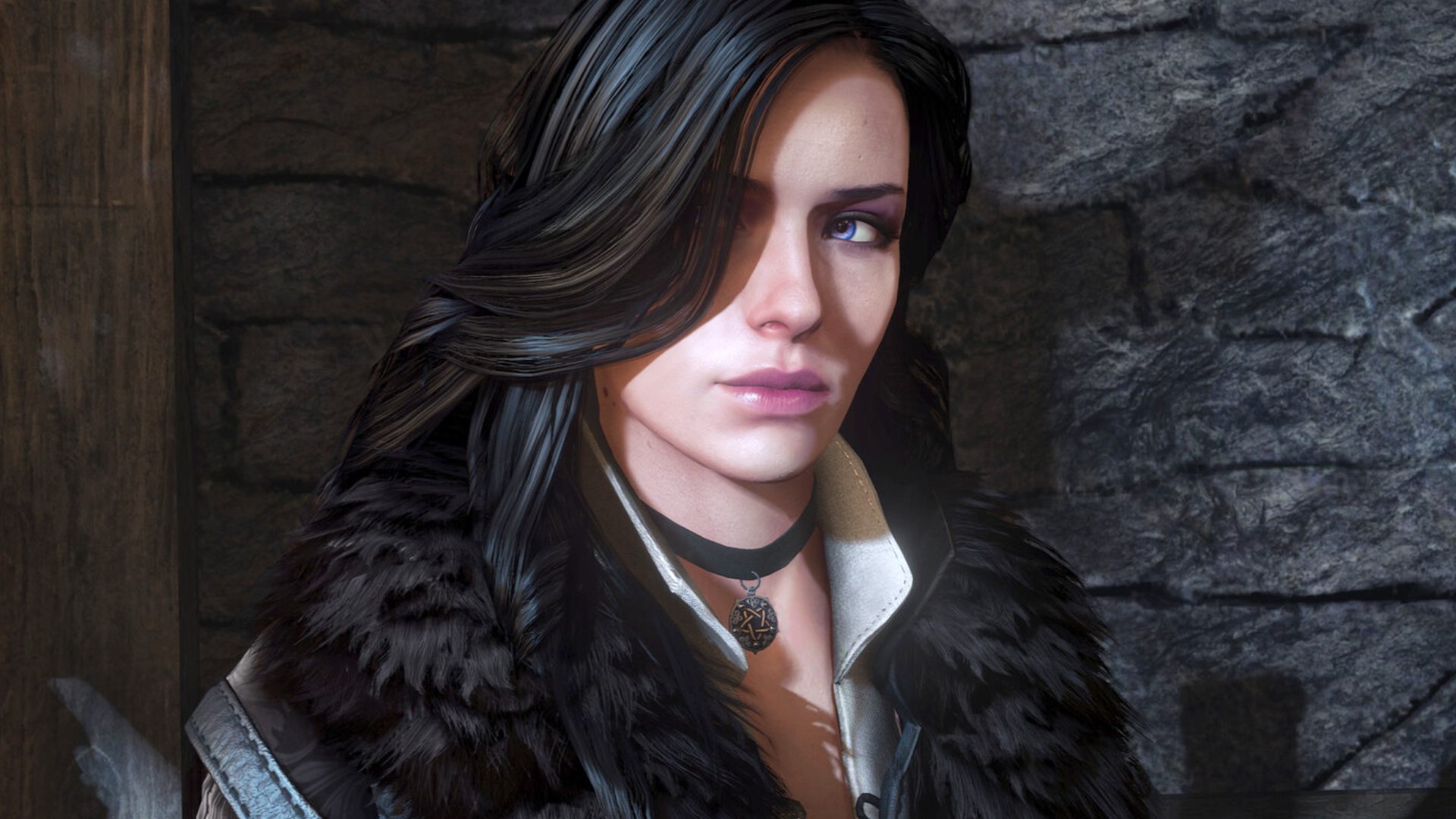
What are the best The Witcher 3 settings for PC? Thanks to regular updates over the past few years, including the major next-gen graphical update, The Witcher 3 has never looked better on PC, but getting the best out of it will still require a little messing around in the settings menus.
It won’t take the best graphics card to get maximum fps out of The Witcher 3, but refining your settings to maximize the performance of your hardware is key.
The Witcher 3 graphics Presets
Prefer a laid-back approach to settings? Don’t worry, The Witcher 3 Wild Hunt has a bunch of presets that’ll save you from tinkering around in menus. The traditional low, medium, high, and ultra options are all present, but if your system is armed with one the best graphics card contenders, there’s an ‘Ultra ray tracing’ tab tagged at the end.
Weirdly, CDPR doesn’t include Ultra+ within its range of Witcher 3 presets, as you’ll need to toggle each graphics option yourself. This will perhaps be a nuisance for players who are confident their RTX 4090 can handle the ramped-up settings. However, if you’re looking to carefully dial things up and boost fps on an older GPU, a preset probably wouldn’t help anyway.
As always, we’d advise using presets as a performance baseline before messing around, and The Witcher 3 system requirements will preemptively shield you from frame rate headaches. Sure, some of you are going to crank everything up max right away just for the hell of it, but taking the time to get things right beforehand will help you jump into Geralt’s shoes (or bathtub) without a hitch.

The best Witcher 3 graphics settings
- V-sync: Off
- Framerate limit: Unlimited
- Display mode: Fullscreen
- Background characters: High
- Shadow quality: Ultra
- Water quality: Ultra
- Foliage visibility: High
- Grass density: Ultra
- Texture quality: Ultra
- Detail level: Ultra
- Motion blur: Off
- Bloom: Off
- Depth of field: On
- Chromatic Aberration: On
- Vignetting: On
- Light shafts: On
- Camera lens effects: Off
Lighting
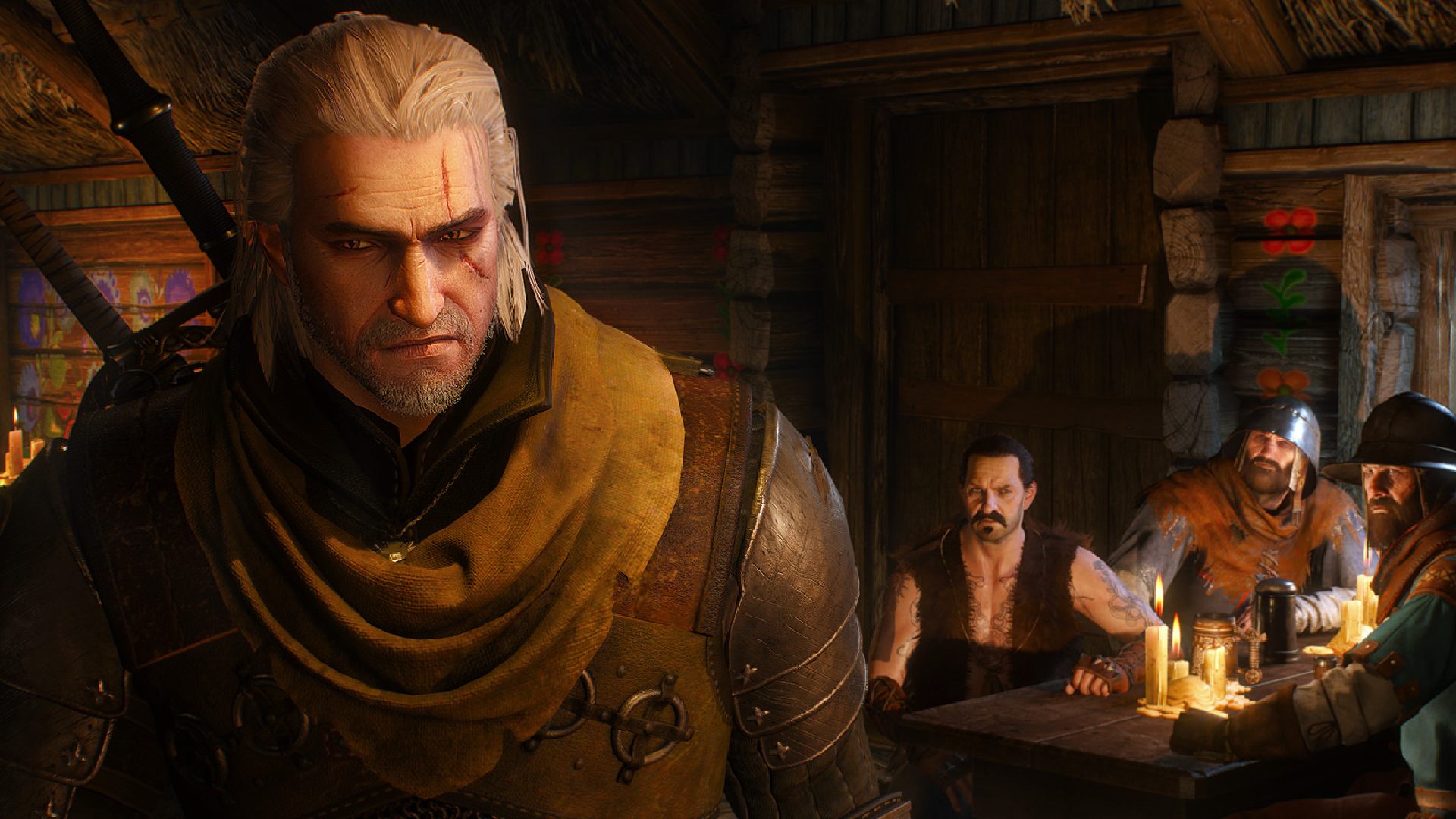
The Witcher 3’s lighting options are incredible, and you won’t be disappointed playing the game with High or Ultra settings enabled. Scaling things back to Medium also won’t disappoint, but we’d suggest looking elsewhere for a frame rate boost. If your rig is fighting performance demons, you could switch bloom settings off, as it’ll provide you with a modest 4% fps bump.
Ultra+ lighting settings take The Witcher 3 to the next level, but they’re definitely a luxury. Again, CDPR probably hasn’t given us a dedicated preset for a reason, and it’s probably best to consider the elevated options after you’ve implemented a balanced range of changes.
Ray Tracing
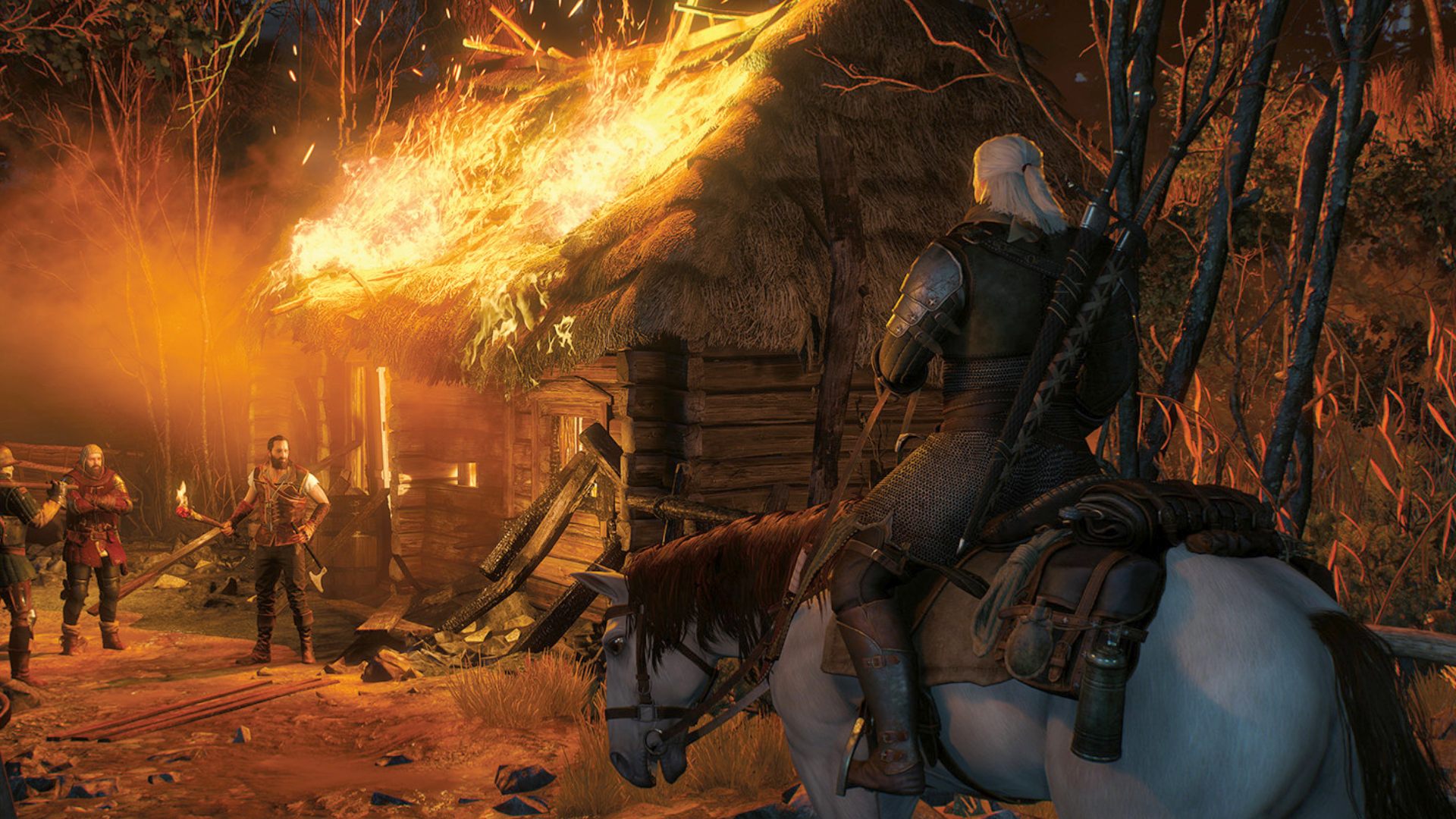
As you’d expect, ray tracing takes a toll on The Witcher 3 frame rates, and CDPR makes steep graphics card recommendations for using the settings. Ultimately, unless you’re using an RTX 4000 like us, you’ll find that you may have to trade away Ultra and High options to achieve 60fps and over.
Opting for Ultra+ options will place you in an even greater performance predicament, especially if you’re not using a shiny new GPU. Thankfully, with our current testing rigs, we’re able to achieve a solid 60fps at 1440p with Nvidia DLSS set to Quality.
If you feel like you can’t live without ray tracing illuminating Geralt’s path, you’re going to have to pay the performance price or throw away fidelity. As a last resort, you could bump things down to 1080p, but we reckon that’ll compromise the experience a bit too much.

Resolution
Speaking of resolution, if you’re lucky enough to own the best gaming monitor around with 4K superpowers, you should keep things native. Dipping things down to 1440p probably won’t offend your eyeballs too much, but we’d steer well clear of 1080p and lower (unless you happen to be playing on a Steam Deck).
Shadow quality
Just like lighting, we think Ultra shadow settings are worth enabling in The Witcher 3. Turning on Ultra+ will give effects an edge, but it’d go to the chopping block before other settings, like textures and foliage. In other words, take the same approach as mentioned before with lighting, particularly if you’re struggling to find your frame rate footing in the first place.
Textures
Textures are more often than not the first thing your eyes will notice when playing the best PC games. In a way, they’re the fabric of the world you’ll perceive as you meander through mesmerizing locales. The same applies to The Witcher 3, and we’d recommend keeping your settings as high as possible.
You don’t have to enable Ultra+ settings to have to good time, but it will transform the RPG into a next-gen outing. CDPR’s world is chock-full of fantasy visuals, from medieval architecture to sprawling valleys, and ramping things up will only add more immersive realism into the mix.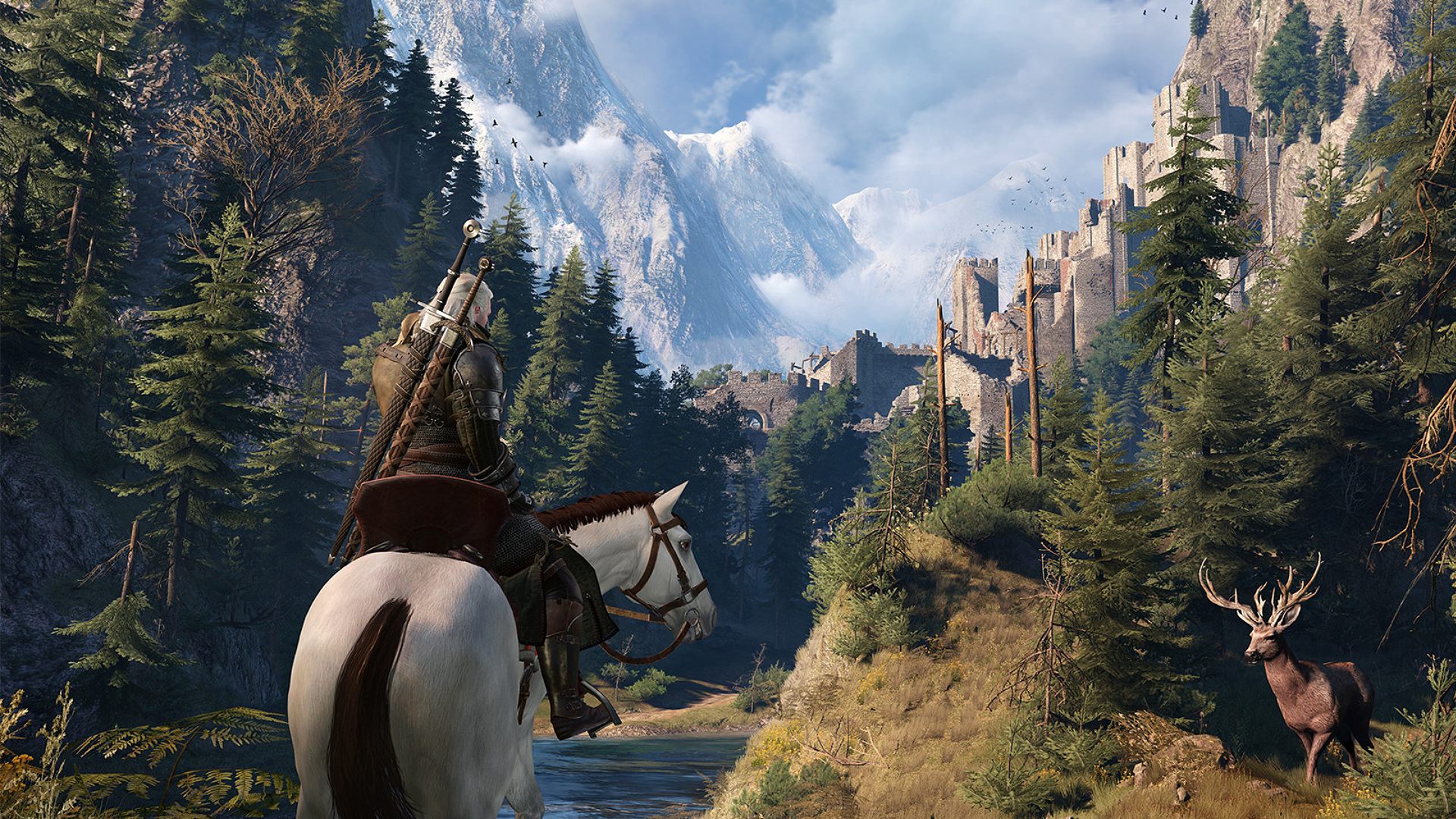
Grass and foliage
The Witcher 3 is a very outdoorsy game, and there are plenty of places to touch grass on the Continent. As such, cranking grass and foliage settings to Ultra will give all that vegetation a realistic vibe, and the next-gen update actually features improved textures compared to the original release.
Switching on Ultra+ grass and foliage is going to make a difference, and it’s a setting worth prioritizing. That’s perhaps a subjective statement given that some players won’t stop for long to appreciate any of their surroundings, let alone a detailed leaf. Nevertheless, it’s one we’d aim for, provided your GPU can handle the extra work.
How we test The Witcher 3
At PCGamesN, we use dedicated gaming rigs to test the best settings for performance and gameplay in the latest releases. The test rig used for Call of Duty Black Ops 6 includes the following components; Intel Core i7 11700F, Nvidia GeForce RTX 4070 12GB, 32GB of DDR4 3200MHz RAM, MSI B560 motherboard. We also test using Widows 11 64-bit.
We always run our testing first at 1,920 x 1,080 to identify the best settings, then again at 2,560 x 1,440 using the same setup to gauge the difference in performance. We use CapFrameX to capture frame data and compare testing sessions.
How to monitor performance in The Witcher 3
If you want to keep an eye on performance in The Witcher 3, we have an easy method that works whether you’re using an Nvidia or AMD graphics card.
For Nvidia cards, ensure you have GeForce Experience or the Nvidia App installed and the in-game overlay enabled. Then hit Alt + R in-game to bring up your performance monitor. With AMD cards, you can enable performance monitoring via the Radeon overlay using the shortcut Ctrl + Shift + O.
Alternatively, you can download free software such as CapFrameX or Nvidia FrameView, to get a cleaner, more simplified benchmarking tool that works with any graphics card.
If you need to upgrade your hardware to start playing The Witcher 3, follow our handy guide on how to build a gaming PC, which takes takes you through the process step by step from start to finish.
